Connecting to Snowflake
Snowflake Connection Requirements
In order to connect Ignition to Snowflake you must have a translator, a driver, and a database connection. The translator and driver only need to be configured once, then you can make as many connections as you want to any compatible Snowflake database.
The JDBC driver will also require query customization when ingesting data into Snowflake to ensure all native Ignition modules function correctly. For instance, custom data stored through the connector requires tables with the necessary formatting adjustments to be created in Snowflake. Note that the Snowflake JDBC connector does not support the Historian. See the JDBC Driver and Database Translator Settings page for more information on configuring the Snowflake driver and translator settings.
The Ignition Exchange has a Perspective Snowflake Dashboard resource available to download that queries data models and historical data from Snowflake. This resource requires the MQTT Transmission module, a Snowflake Account, and Cirrus Link IoT Bridge to provide the easily deployable solution when connecting to Snowflake. There also needs to be an MQTT broker/MQTT server to publish the data to the MQTT Transmission module for the IoT Bridge service to subscribe to it.
Refer to the Cirrus Link documentation for more information on how this architecture is connected and related Snowflake tools.
Connect to Snowflake
-
On the Gateway Webpage, go to the Connections section.
-
Select Databases > Connections.

-
Click Create Database Connection + on the Database Connections page
-
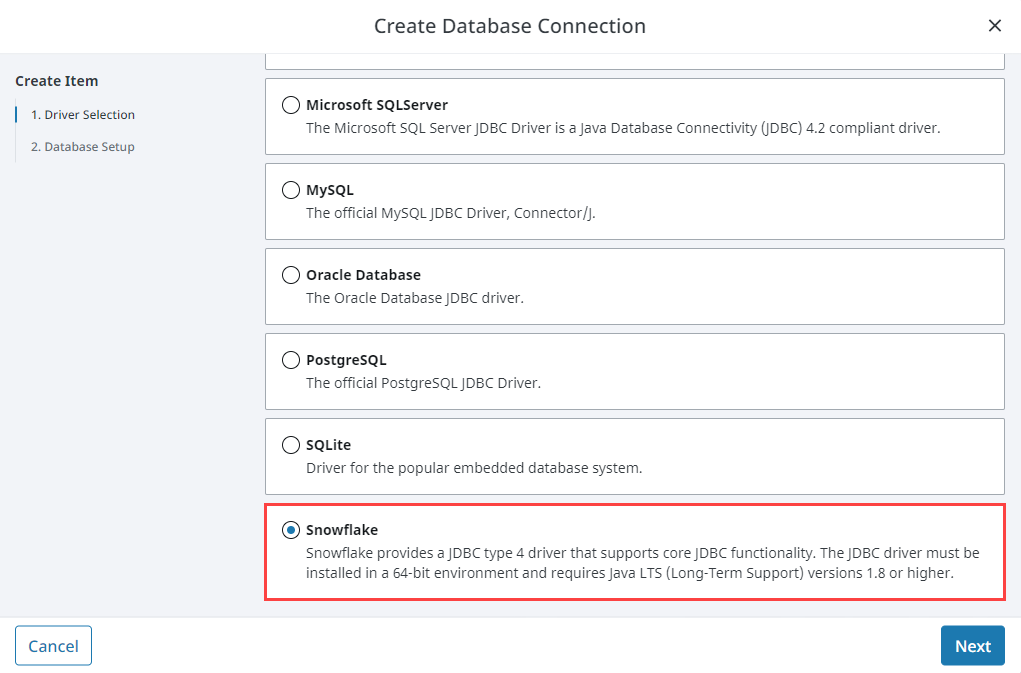
Select Snowflake and click Next.
-
Enter a name for your connection.
-
Enter the the connect URL for the database.
-
Click Create Database Connection.
Your connection is now created and the Database Connections page is displayed showing the Status of your connection as Valid.