Storing Files in a Database
Storing and Displaying Files in a Database
Ignition can store different types of files into a database by storing the raw file bytes into a special database column. Ignition can also pull these file bytes out and display certain files within a Session or Client.
Each database has different column types that are used to store files, so it is important to check with your database documentation to see which data type the column would need to be set to for it to accept file bytes. For example, in MySQL, the datatype that accepts PDF bytes is a LongBlob datatype, so you will need to set the PDF Data column to the LongBlob datatype. MS SQL accepts the Varbinary datatype, so you will need to set the PDF Data column to a Varbinary datatype.
Perspective PDF File Example
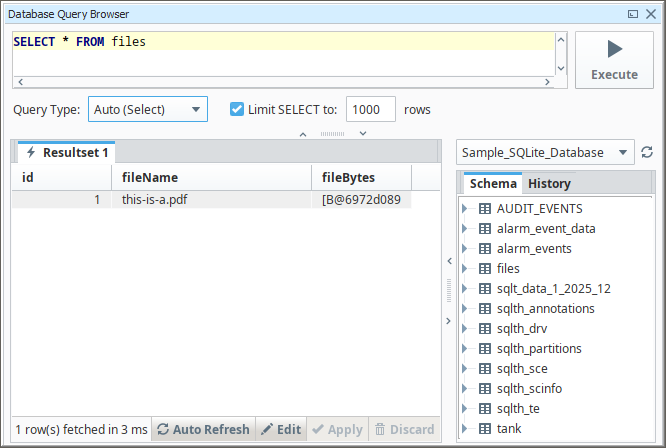
This example shows how to store an uploaded PDF file as binary data in a database and display it in a Perspective view. It uses a database table named files, which includes a fileName text or varchar column and a fileBytes binary column that stores the PDF data.
Uploading PDF Files in Perspective
The File Upload component provides file contents through the onFileReceived event. When a user selects or drops a file, the component uploads it to the Gateway and fires this event. The event object includes the file name and file bytes, which you can write directly to the database.
-
Add a File Upload component to your view.
-
Right-click the File Upload component and select Configure Events.
-
Select the onFileReceived event and add a Script action using the Plus
 icon.
icon. -
Place the following code in the Script field and click OK.
Upload a File into the files Table# Get the file name and bytes from the event
fileName = event.file.name
fileBytes = event.file.getBytes()
# Store the file in the database
system.db.runPrepUpdate(
"INSERT INTO files (fileName, fileBytes) VALUES (?, ?)",
[fileName, fileBytes]
)
system.perspective.print("Uploaded %s into the files table." % fileName) -
On the top navigation bar in the Designer, toggle the Preview
 icon to enable Preview Mode.
 -
Click Browse on the File Upload component

-
Select a file to upload and click Open.
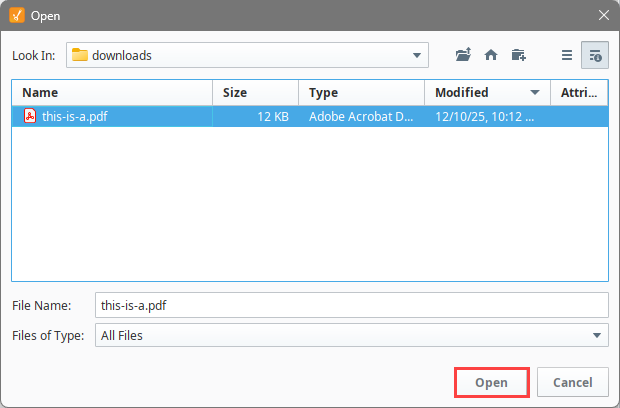
-
A message will appear indicating a successful upload.

When a file is uploaded, the script stores the file name and bytes in the files table.
Displaying PDF Files in Perspective
Perspective includes a built-in PDF Viewer component that displays PDFs hosted at a URL. When a PDF is stored directly in a database as binary data, however, it does not have a web-accessible address that the browser can load. In this example, the stored file bytes are retrieved from the database, encoded as Base64, and converted into a Data URL that can be passed to a component capable of rendering the content, such as an Inline Frame.
Large PDFs may exceed browser memory limits when rendered as Base64. For large files, consider exposing the content through a WebDev endpoint instead of a Data URL.
-
Create a Named Query that returns the file name and bytes for a selected file:
SELECT fileName, fileBytes
FROM files
WHERE id = :fileID -
Add a Dropdown component to the view and bind its options property to a Named Query that returns available file IDs and names. This example uses the following Named Query.
SELECT id, fileName
FROM files -
Add an Inline Frame component to the view. This component will be used to display the PDF after it is retrieved from the database and converted into a Data URL.
-
Bind the Iframe src property to the Named Query that returns the
fileNameandfileBytescolumns. -
Add a script transform to the binding that converts the returned file bytes into a Data URL.
import base64

# Expect a dataset with a "fileBytes" column
if value is None or value.getRowCount() == 0:
    return ""

fileBytes = value.getValueAt(0, "fileBytes")
encoded = base64.b64encode(fileBytes).decode("utf-8")

return "data:application/pdf;base64," + encoded
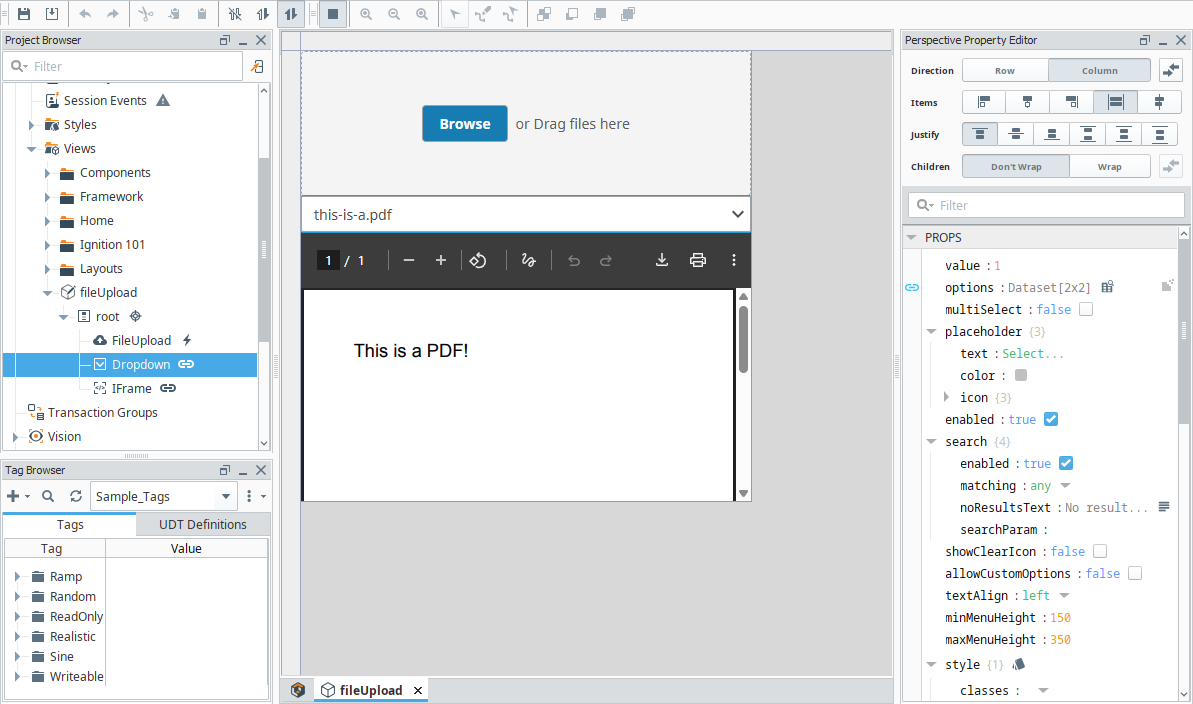
Now, when the user selects a file in the Dropdown, the Named Query returns the stored bytes. The transform converts the bytes into a Base64-encoded Data URL, and the Iframe renders the PDF in the browser.
Vision PDF File Example
One of the most common file types to store is a PDF. Storing each PDF in a central database allows any Vision Client to access it, instead of placing the file on a shared drive that all client machines can reach.
Uploading PDF Files in Vision
With a script on a Button component, you can store a PDF file in the database so that any user can view it later. This part does not use a Named Query, because Named Query Parameters do not have a data type that allows you to pass in raw file bytes. Instead, you can use system.db.runPrepUpdate to call a query from the script.
This example requires a table with a byte array column in it. For example, MySQL uses the BLOB data type and MSSQL uses the varbinary() data type.
This function will not work with the default Client Permissions settings. Legacy Database Access must be enabled for this to work.
-
Add a Button component to a new Main Window.
-
Change the Text property to say Add File.
-
Right-click the Button and select Scripting.
-
Navigate to the Script Editor tab of the
actionPerformedevent handler. Here you can add a script that will grab the file bytes using the file path and the system.file.readFileAsBytes function, and then insert that into the database along with a user-selected file name.Python - Uploads PDF Files to a Database Using a Button# Find the path to the PDF file.
path = system.file.openFile("pdf")
# Check to ensure that the user actually selected a filepath.
if path is not None:
# Read the file as bytes.
data = system.file.readFileAsBytes(path)
# Ask the user to enter a filename.
suggestedName = path.split('\\')[-1]
name = system.vision.showInput("Enter a name for the file", suggestedName)
# Check to ensure that the user entered a name for the file.
if name is not None:
# Insert the data and name into the database.
system.db.runPrepUpdate(
"INSERT INTO files (fileName, fileBytes) VALUES (?, ?)",
[name, data]
)
-
-
Test the script by putting the Designer into Preview Mode and clicking the Button.
-
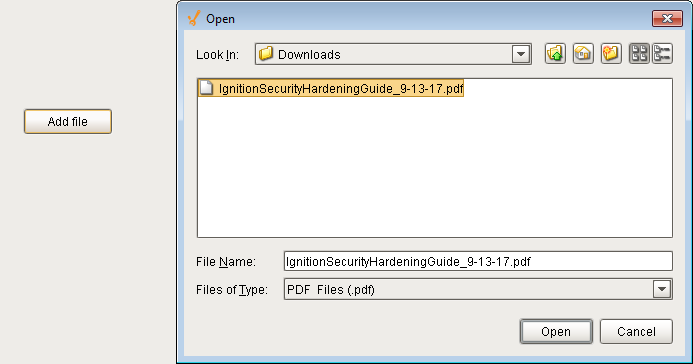
Select the file to load.
-
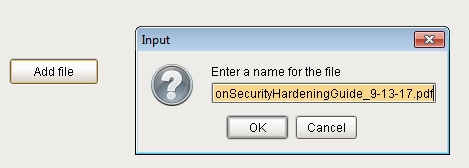
Enter a file name.
-
Displaying PDF Files in Vision
Vision can render a PDF document inside the PDF Viewer component, which is a part of the Reporting Module. To view PDF files in a Client, your Ignition server must have the Reporting Module installed. Once the module is installed, you can load the bytes from the database into the PDF Viewer component.
-
This example assumes the
filestable described earlier in the section already exists and contains stored PDF records. Set up security to fit your needs, and name the Named Query appropriately. For more information on creating Named Queries, see Using Named Queries - Example.-
With no Parameters, add a query to select all the files in the
filestable.SQL - Selecting all FilesSELECT id, fileName FROM files
-
-
Create a second Named Query, same as in step 1. This will be used to grab the file name and bytes after the user has chosen a file.
-
Add a single Value type Parameter,
fileID, using an Int4 data type. -
Add the query to select the file name and bytes based on the selected ID.
SQL - Selecting a File based on an IDSELECT fileName, fileBytes FROM files WHERE id = :fileID
-
-
On the window, add a Dropdown component and a PDF Viewer component.
-
On the Dropdown component, add a Named Query binding to the Data property.
- Set the binding to the Named Query created in step 1.
- Place a small refresh Button component next to the Dropdown that will refresh this query. See Refreshing a SQL Query for more information on refreshing with a Button component.
-
Right-click the Dropdown component and select Scripting.
-
Navigate to the Script Editor tab of the
propertyChangeevent handler. -
This script will take any new selected value and use it in the Named Query from step 2 to get the file name and bytes. It then loads the bytes into the PDF Viewer.
Python - Displays PDF Files from a Database Using the PDF Viewer# Check to see if the property that changed was the Selected Value property.
if event.propertyName == "selectedValue":
# Run the query to grab the file name and bytes using the new selected ID value.
data = system.db.runNamedQuery("Read File", {"fileID": event.newValue})
# Grab the file bytes and name from the same row.
bytes = data.getValueAt(0, "fileBytes")
name = data.getValueAt(0, "fileName")
# Load the bytes into the PDF Viewer component.
event.source.parent.getComponent('PDF Viewer').loadPDFBytes(bytes, name)
-
-
Place the Designer into Preview Mode, and try selecting one of the stored files.