Inserting Data into a Database
A common way to insert information into a database is to run a script after a user presses a Button component that will collect data and execute a Named Query to push that data into a database table. Using a script allows values to be collected from tag values and property values as needed to insert into a table. The following syntax shows how this script can be structured.
value1 = {component property reference}
value2 = {tag value}
value3 = {static value}

query = "INSERT INTO table (col1, col2, col3) VALUES (?,?,?)"
args = [value1, value2, value3]
system.db.runPrepUpdate(query, args)
It is important to note that if you choose to use the runPrepUpdate function in Vision, you'll be required to enable certain Client Permissions.
Inserting Values on a Button Press Example
This example demonstrates how to insert data into a database for both Vision and Perspective using the database table and Named Query created in the steps below:
-
Open the Database Query Browser from the top navigation bar under Tools.
-
Create a machines table in a database with a machine_name and an area_number column. This example uses the following statement for the Default database.
Create TableCREATE TABLE machines (
machine_name varchar(255),
area_number int
); -
Open the Named Queries workspace from the Project Browser.
-
Enter Insert Values into the New Query name field.
-
Select Update Query.
-
Select the Authoring tab.
-
Update the two default Value type Parameters.
- Rename the first value to machineName and leave the data type as String.
- Rename the second value to areaNumber and change the data type to Int2.
-
Enter the following Named Query statement:
SQL - Insert ValuesINSERT INTO machines (machine_name, area_number) VALUES (:machineName, :areaNumber)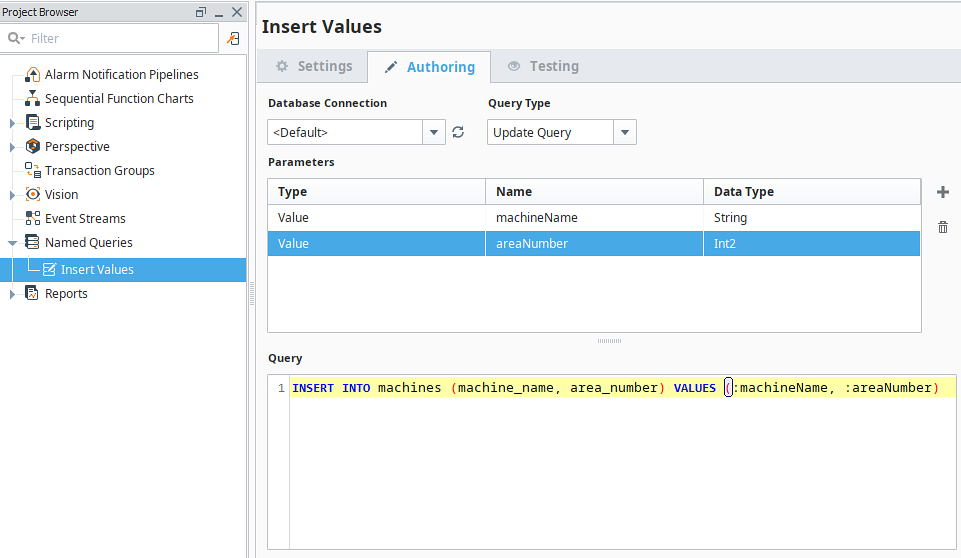
Refer to the Vision and Perspective sections for the respective steps to build out a window or view for the rest of this example.
Vision
-
On a Main window, add a Button component, a Text Field component, and a Dropdown component.
-
On the Dropdown's
dataproperty, create a dataset that contains the following values and labels:Value Label 1 Area 1 2 Area 2 3 Area 3 -
Change the Button's
textproperty to Submit.
-
Right-click on the Button and select Scripting.
-
Navigate to the Script Editor tab under Event Handlers > action > actionPerformed.
-
Enter the following script, which will pull in the values from the Dropdown and the Text Field, and then insert them into the table using the Insert Values Named Query created above.
Python - Button actionPerformed Script# Grab the area number and machine name from the components we added to the window.
areaNum = event.source.parent.getComponent('Dropdown').selectedValue
machineName = event.source.parent.getComponent('Text Field').text
# A call to our Named Query, inserting the two parameters using dictionary syntax.
system.db.execUpdate("Insert Values", {"machineName":machineName, "areaNumber":areaNum})
Verify functionality by placing the Designer in Preview mode, selecting an area, entering in a machine name, and clicking Submit. Open the Database Query Browser and execute a SELECT query to see the new row.
Perspective
-
Drag a Button component, a Text Field component, and a Dropdown component onto a view.
-
On the Dropdown's
optionsproperty, add three array elements to enter the following value/label pairs:- options.0
- value: 1
- label: Area 1
- options.1
- value: 2
- label: Area 2
- options.2
- value: 3
- label: Area 3
- options.0
-
Change the Button's
textproperty to Submit. -
Right-click on the Button and select Configure Events....
-
Select Component Events > onActionPerformed.
-
Click the Add
 icon and select Script.
 -
Enter the following script, which will pull in the values from the Dropdown and the Text Field, and then insert them into the table using the Insert Values Named Query created above.
Python - Button actionPerformed Script# Grab the area number and machine name from the components we added to the window.
areaNum = self.getSibling("Dropdown").props.value
machineName = self.getSibling("TextField").props.text
# A call to our Named Query, inserting the two parameters using dictionary syntax.
system.db.execUpdate("Insert Values", {"machineName":machineName, "areaNumber":areaNum})
Verify functionality by placing the Designer in Preview mode, selecting an area, entering in a machine name, and clicking Submit. Open the Database Query Browser and execute a SELECT query to see the new row.