Image Management Tool

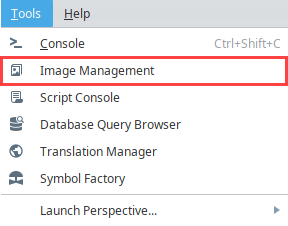
Images such as PNGs, JPGs, GIFs, and SVGs can be managed using the Image Management tool. These files are stored to the file system by the Gateway as image resources that include the image file and associated metadata. The Image Management tool is accessed from Tools > Image Management in the Designer, as shown below.
The Image Management tool does not support bitmap files.
Uploading Images
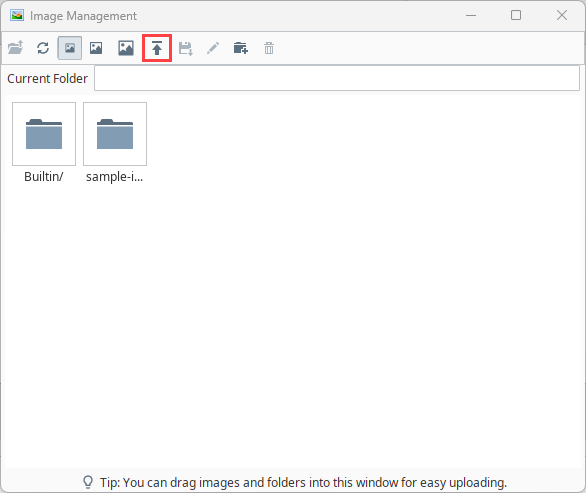
You can upload images by dragging one or more image files or folders from your local file system directly into the Image Management tool, or by using the Upload icon to select images from your local file system.
-
Click the Upload icon on the toolbar.
-
Select one or more image files from their current directory on your local file system and click Open.
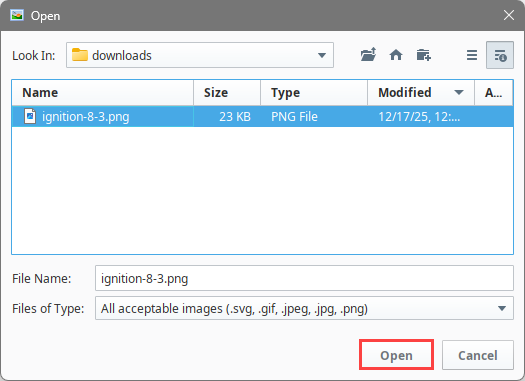
Once the upload completes, the images appear in the Image Management tool.
Images uploaded through the Image Management tool are stored on the file system of the machine where the Gateway is installed. Within the Ignition installation, image resources are stored under: data/config/resources/core/ignition/images.
The exact location of the Ignition installation directory varies by operating system and installation method. These file locations are provided for reference only. You should not manually add, remove, or modify files in these directories.
Downloading Images
You can also download individual images or entire folders using the Image Management tool. This is useful when migrating image resources to another Gateway or creating local backups.
-
In the Image Management tool, select one or more images or folders.
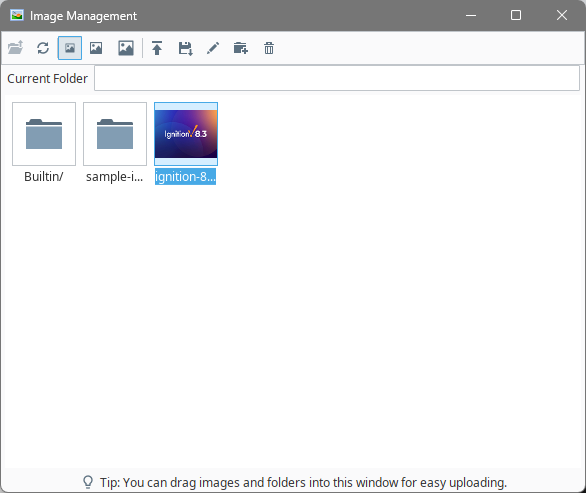
-
Click the Download icon from the toolbar.
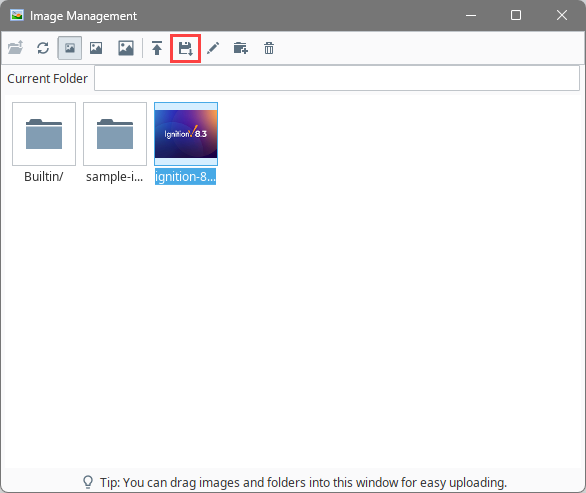
-
Choose a download location on your local file system and click Save.
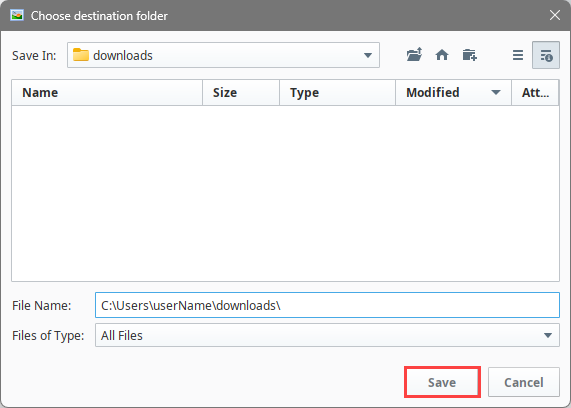
Copying Image Paths
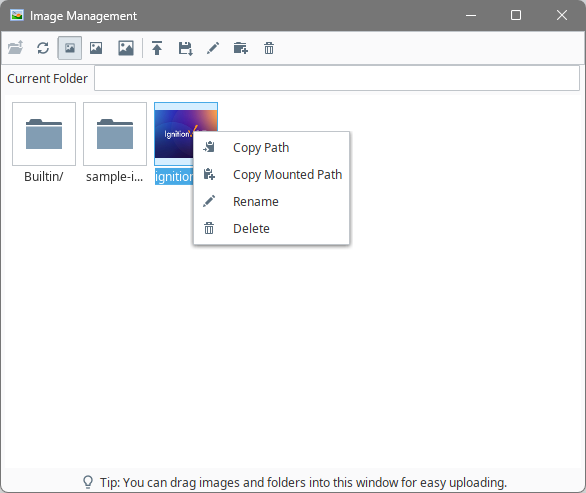
You can right-click an image in the Image Management tool to access options for copying image paths.
- Copy Path copies the project-relative image path.
- Copy Mounted Path copies a mounted path suitable for use in Perspective components.