Workstation Keyboard Layouts
Perspective Workstation includes a built-in on-screen keyboard for touchscreen HMIs, panel PCs, and other workstations that don't have a physical keyboard. When a user selects an input component in a running Session, such as a Text Field, the on-screen keyboard opens so the user can enter text by touch.
The keys, labels, and languages on the on-screen keyboard come from keyboard layouts that you configure using the Touchscreen Keyboard Layouts editor. Layouts use a common JSON structure and are stored on the Gateway, so the same layouts are shared across all projects. Ignition includes several default layouts, and you can create your own, import and export layouts as JSON files, and preview a layout before you save it.
Workstation Keyboard Layouts Editor
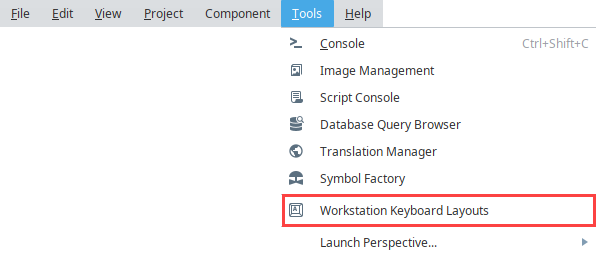
To open the Touchscreen Keyboard Layouts editor, select Tools > Workstation Keyboard Layouts in the Designer.
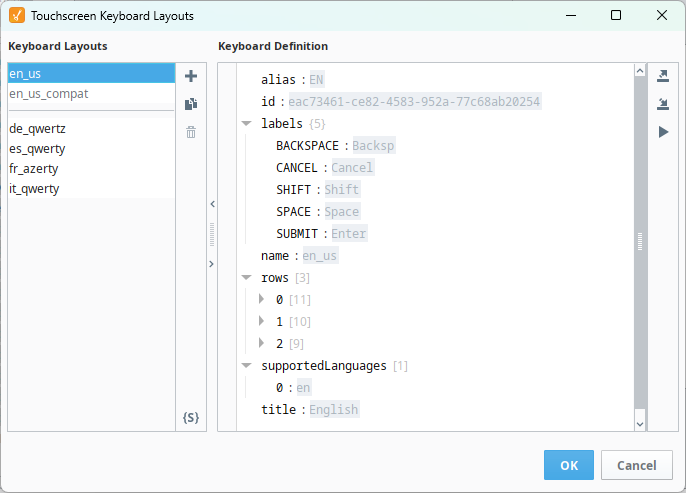
The editor has two sections:
- Keyboard Layouts: Lists the available keyboard layouts. Use the Add
 , Duplicate
 , and Remove
 icons to manage layouts, and the Export Schema
 icon to save the keyboard layout JSON schema.
- Keyboard Definition: Shows the properties of the selected layout. Use the Export
 , Import
 , and Preview
 icons on the right side of this section to export, import, or preview a layout.
Select a layout in the Keyboard Layouts list to view its definition. Click OK to save your changes, or Cancel to discard them.
Default Keyboard Layouts
The keyboard layouts described in the table below are included by default.
| Layout | Description |
|---|---|
| en_us | English keyboard layout. |
| en_us_compat | English keyboard layout kept for compatibility with the legacy layout. |
| de_qwertz | German QWERTZ keyboard layout. |
| es_qwerty | Spanish QWERTY keyboard layout. |
| fr_azerty | French AZERTY keyboard layout. |
| it_qwerty | Italian QWERTY keyboard layout. |
The en_us and en_us_compat layouts are built in and can't be edited or removed. To customize one of them, select it and click the Duplicate icon, then edit the copy. The international layouts can be edited, or removed with the Remove icon if your system doesn't need them.
Keyboard Definition Properties
| Property | Description |
|---|---|
| alias | The 2-3 character string that appears on the keyboard's language selector key to identify this layout, such as EN. |
| id | The fixed UUID for the keyboard layout. IDs are generated automatically and are used to track layouts as they're updated on the Gateway. |
| labels | Localized strings for the text on system keys. Available labels are BACKSPACE, CANCEL, SHIFT, SPACE, and SUBMIT. |
| name | The name of the keyboard layout, as it appears in the Keyboard Layouts list. |
| rows | An array of keyboard rows. Each row is an array of keys, and each key can be defined in any of the following ways:
|
| supportedLanguages | An array of IETF language tags for the languages this layout supports, such as en. When the keyboard opens, Ignition looks for a layout that supports the user's locale, and falls back to the English layout if none is found. |
| title | The name presented to the user when selecting this layout, such as English. |
Adding Custom Keyboard Layouts
You can create a keyboard layout from scratch, or duplicate an existing layout to use as a starting point.
-
In the Touchscreen Keyboard Layouts editor, click the Add
icon.A new layout named keyboard_1 is added to the Keyboard Layouts list. The layout name appears in italics with an asterisk until you save it. New layouts start with the alias
KB, default English labels, the titleCustom Keyboard, and empty rows and supportedLanguages arrays.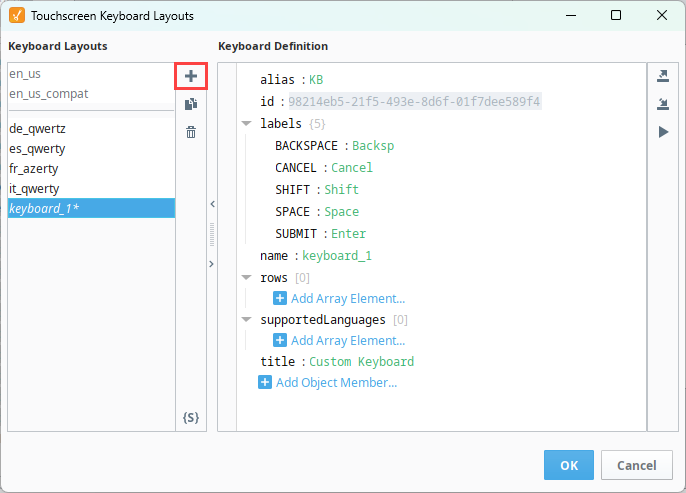 tip
To start from an existing layout instead, select the layout and click the Duplicate
icon. -
In the Keyboard Definition section, update the name, alias, title, and labels properties as needed.
-
Under rows, click Add Array Element to add each keyboard row, then add the keys for each row. See Keyboard Definition Properties for the supported key formats.
-
Under supportedLanguages, click Add Array Element and enter a language tag for each language the layout supports.
-
Click the Preview
icon to check the layout. See Previewing Keyboard Layouts for details. -
Click OK to save the layout.
Exporting Keyboard Schemas
The keyboard layout JSON schema describes the structure every keyboard layout follows. Export the schema to validate layouts or autocomplete results when you build layouts in an external JSON editor.
-
In the Touchscreen Keyboard Layouts editor, click the Export Schema
icon at the bottom of the Keyboard Layouts section.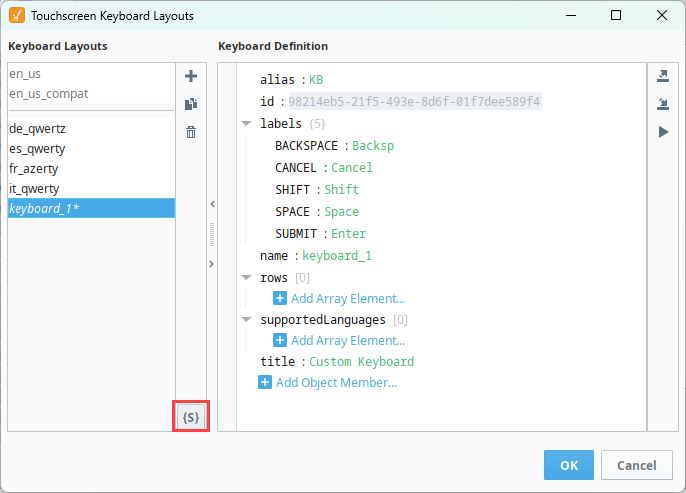
-
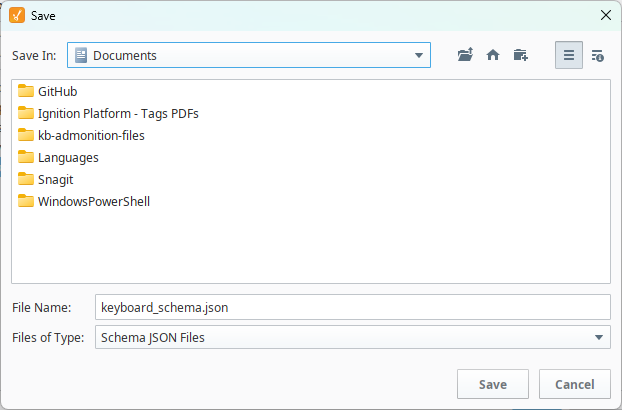
In the Save popup, choose a location and click Save. The file is saved as keyboard_schema.json by default.
Exporting Keyboard Layouts
Export a keyboard layout to back it up, edit it in an external JSON editor, or move it to another Gateway.
-
In the Touchscreen Keyboard Layouts editor, select the layout you want to export.
-
Click the Export
icon.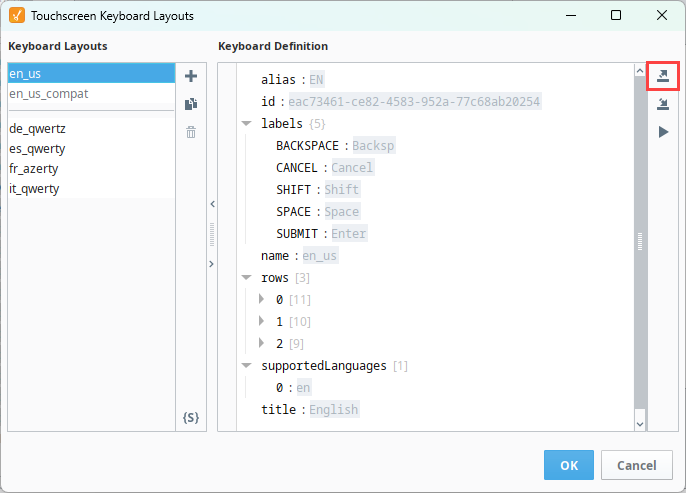
-
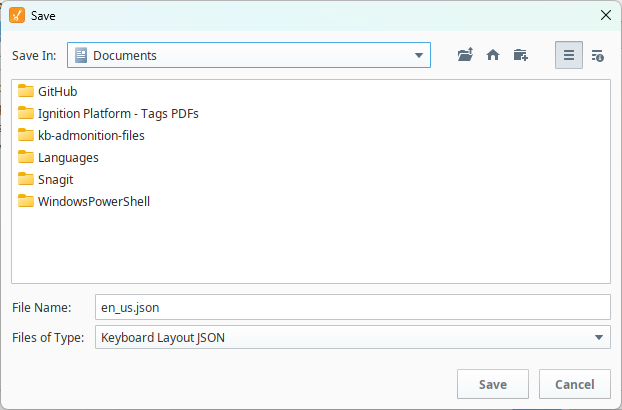
In the Save popup, choose a location and click Save. The file is named after the layout by default, such as en_us.json.
Importing Keyboard Layouts
Import a keyboard layout that was exported from another Gateway or built in an external JSON editor. Imported layouts must be JSON files.
-
In the Touchscreen Keyboard Layouts editor, click the Import
icon.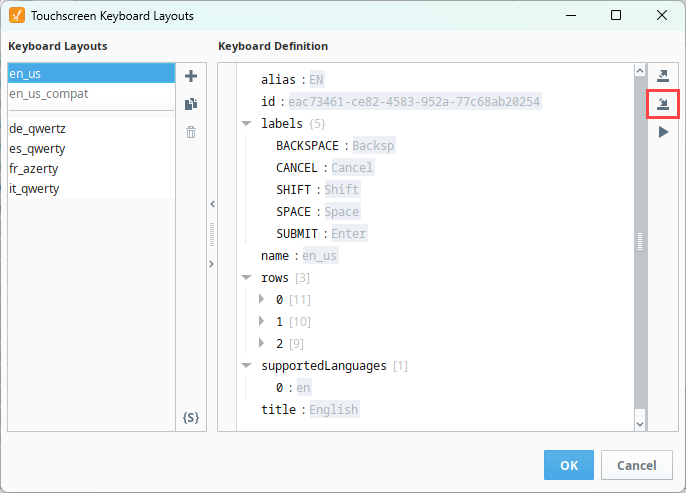
-
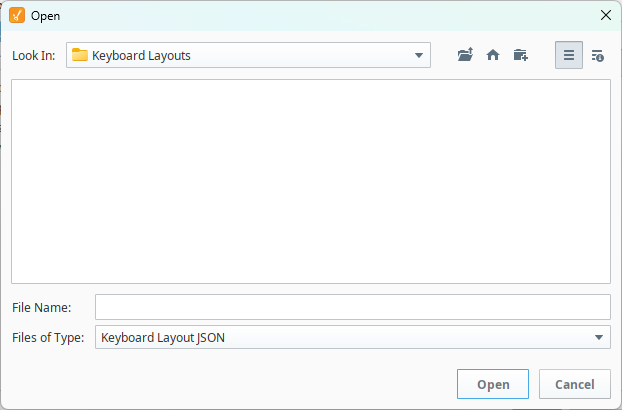
In the Open popup, select the keyboard layout JSON file and click Open.
-
Click OK to save the imported layout.
Previewing Keyboard Layouts
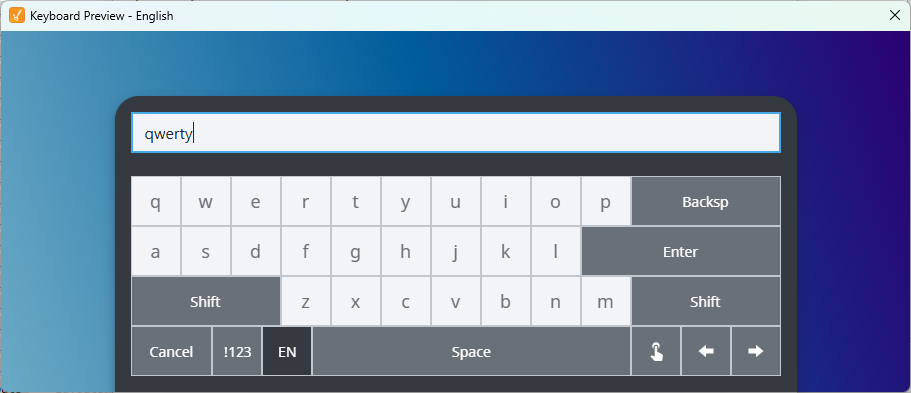
You can preview a keyboard layout in the Designer before you save it. The preview popup includes a text field so you can test the keys, shift behavior, and accent options.
-
In the Touchscreen Keyboard Layouts editor, select the layout you want to preview.
-
Click the Preview
icon.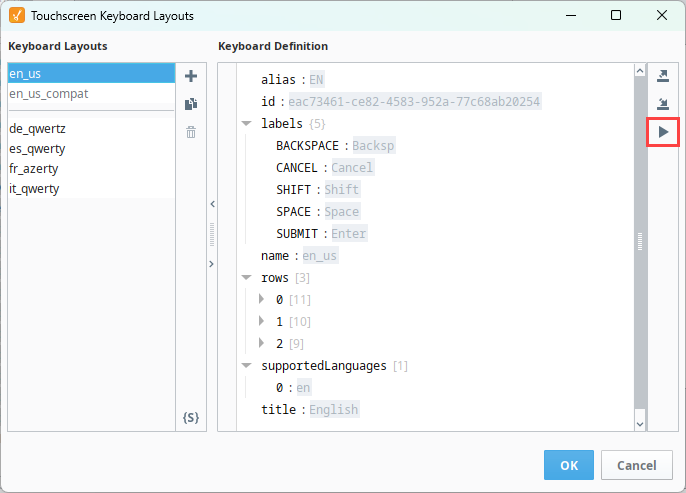
The Keyboard Preview popup opens and displays the selected layout.
-
Type in the preview text field to test the layout, and then close it when you're done.
Long press any key that has accent characters defined to open a popup with the alternate characters. For more information about long press, accent keys, and navigating within the text field, see Keyboard Layouts.