Catalyst Designer Interface
AI in the Designer
The Catalyst Core module embeds AI throughout the Designer to help you build and update your project. The areas where you can use AI are denoted by a purple Ask AI  icon. Clicking on the Ask AI icon will open a popup chat box that allows you to converse with your selected model provider. If you do not have a model provider configured, you will not be able to use any AI in the Designer.
Switching Providers and Models in the Designer
If you have multiple model providers configured, you can select which one to use in the Designer by clicking on the Ask AI icon on the bottom of the Designer window. From this menu, you can also refresh the list of model providers your Designer can see. This is useful if you added a model provider in your Gateway, but the Designer does not see it.

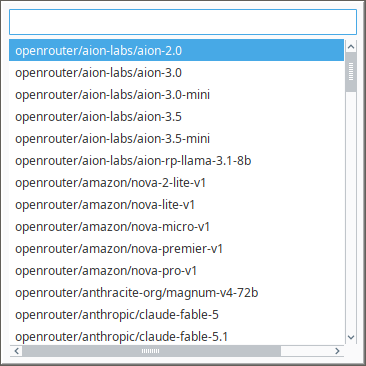
You can also select a specific model from your model provider by clicking on the model itself to the right of the Ask AI icon.
AI in Designer Subsystems
The following table details which subsystems and workspaces in the Designer have AI.
| Subsystem/Workspace | Resources |
|---|---|
| Scripting |
|
| Perspective |
|
| Vision | Client Events:
|
| Event Streams | Stages:
|
| Files |
|
| Named Queries |
|
| Reports | Script Data Source |
| Web Dev | Python Resource |
| Tag Browser | |
| Script Console | There are no submenus or subsystems within the Script Console for additional AI integration. |
| DB Query Browser | There are no submenus or subsystems within the DB Query Browser for additional AI integration. |
Using Designer Assistants
When you use AI, the AI agent will provide a preview of the content it has produced. However, no changes will actually go into affect until you decide to apply the AI agent's suggested changes.
Besides the Designer's AI, you can use your own custom AI agents. Your AI agents can be invoked by using a system.ai scripting function, or through the Perspective AI Chat component.
Catalyst Agent Designer Tools
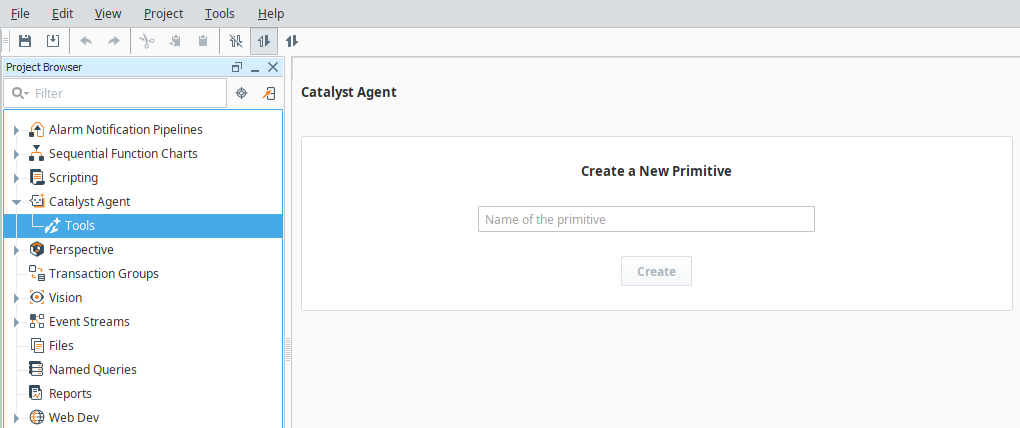
The Catalyst Agent workspace in the Designer is enabled by the Catalyst Agent module. Once this module is installed, the Catalyst Agent Workspace will be displayed in the Project Browser with a Tools listing. Tools are defined scripts that run when invoked by an AI agent. Values provided by callers will be passed as the parameters into the invoked script.
The custom tools created in the Designer will be available to configure on the Gateway with available agents and MCP server connections. See the Catalyst Agent page for more information on creating agents and MCP server connections.
To create a tool in the Designer:
-
Select Calyst Agent > Tools in the Project Browser to open the Catalyst Agent workspace.
-
Enter a name for the tool and click Create.
-
On the Settings tab, fill in the Description field with the function and scope of the tool.
-
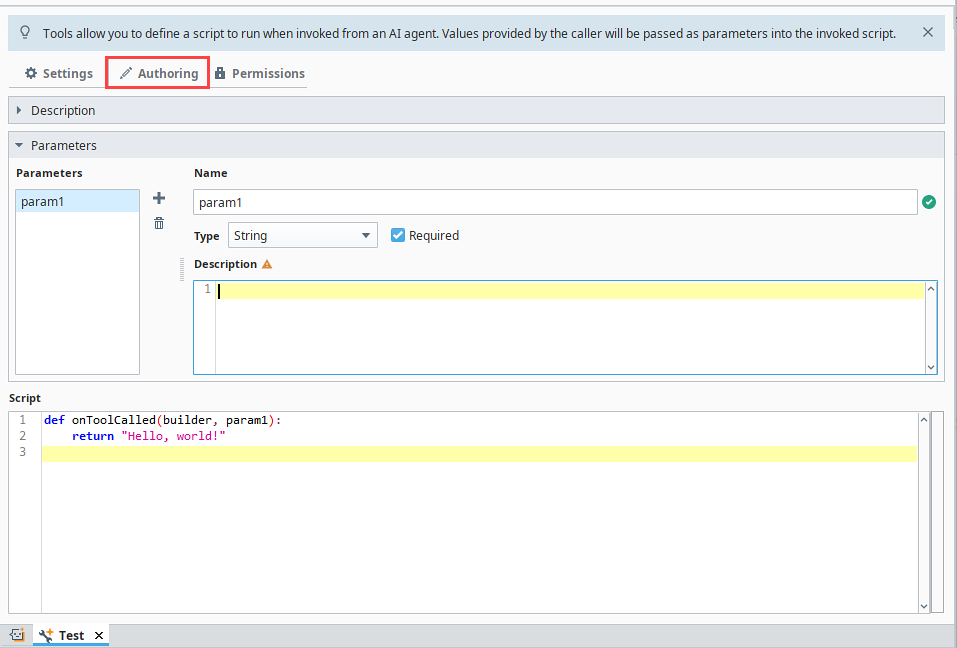
On the Authoring tab, create any necessary parameters and define a script to run.
-
On the Permissions tab, select the required security levels agents and callers must hold to invoke the tool.
-
Save the project.