Perspective - AI Chat

Component Palette Icon:

Description
The AI Chat component allows you to chat with an AI agent. The AI agent is defined by the user in your Gateway, located at Services > Catalyst > Agents. Note that you will need to already have configured a model provider before defining an AI agent.
By chatting with the AI agent, you can have it perform different tasks, depending on the provided system prompt and tools. The Catalyst Agent Designer Tools will allow your agent to interact with Gateway resources, while the AI Chat component's Agent Tools will allow your agent to interact with other Perspective resources.
Properties
Most Properties have binding options. For more information on Bindings, see Types of Bindings in Perspective. This section only documents the Props Category of properties. The other Categories are described on the Perspective Component Properties page.
| Name | Description | Property Type |
|---|---|---|
| agentName | The name of the agent to use, as defined on the Gateway. The AI Chat component will use the selected agent's model, system prompt, and tools. Each inquiry will be checked against the agent's permissions. | object |
| modelOverride | The model to use in place of the agent's configured model. The model must be registered with the same provider as the agent. If empty, will fall back to the agent's configured model in agentName. | object |
| prompt | The contents of the message box. Setting this property fills the box, and the component will write the user's text back when the box loses focus. Filling this property does not send any messages, and having it blank will leave the box as-is. | value: string |
| enableUserChat | Controls if the message box is enabled or disabled. If false, the entire bottom bar is hidden, including the clear conversation ( ) button. Suggested prompts are still clickable, so a read-only view can still start a conversation. | boolean |
| suggestedPrompts | Pre-defined prompts offered on an empty conversation. Clicking a pre-defined prompt will send it. These pre-defined prompts will be hidden once a conversation has started, and will remain hidden until the conversation is cleared. | object |
| agentIcon | An optional icon shown beside the agent's replies and on an empty conversation, following a library/iconName scheme. If left blank, the AI Chat's component will be used. | value: string |
| timeoutSecs | The number of seconds to wait for a response before giving up and offering to try again. If blank or provided a value of 0, the component will wait indefinitely. | value: numeric |
| context | A free-shape host context. Any view, session, or page data can be bound here. The current value is serialized to JSON and prepended to each user message so that the agent sees fresh page context every turn. If left blank, no data will be injected. | object |
| usage | A read-only property the component writes to regarding token usage as the conversation continues. This property can be bound elsewhere, but writing to it has no effect since the component will overwrite it. Clearing the conversation will reset each value to 0. Usage metrics include:
| object |
Component Scripts and Events
Further component interaction and functionality can be configured for all components through scripting and event actions. Right-click on the component or select Components from the Designer menubar to access the configuration popups for both of these options:
- Configure Events: Accesses the Event Configuration popup where you can configure actions to run in response to events to make the component dynamic. The Events Configurations page shows how to configure events and actions on a Perspective component.
- Configure Scripts: Accesses the Script Configuration popup where custom methods and message handlers can be added. The Scripting in Perspective section details scripting fundamentals, creating custom methods, and using message handlers.
The AI Chat component also has Component Events and Agent Tools associated with it. See the Perspective - AI Chat Scripting page for more information.
Example
The following example uses the AI Chat component to write to a Label component.
-
In the Designer, drag and drop an AI Chat component and Label component into your Perspective Workspace.
-
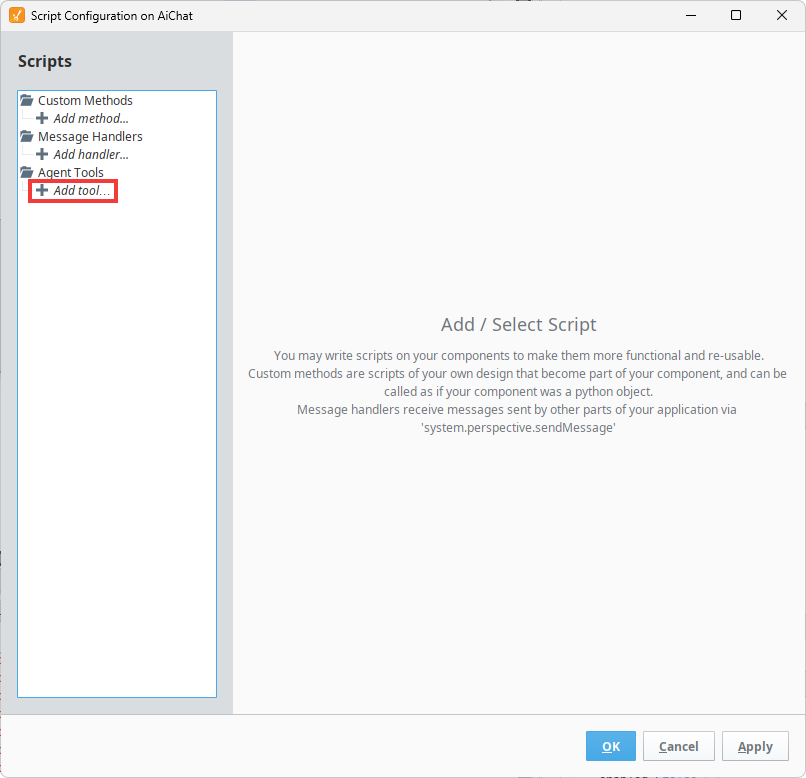
Right-click on your AI Chat component, and select Configure Scripts.... The Script Configuration window will open.
-
Under Agent Tools, double-click on Add tool.... This will open the Edit Custom Tools form.
-
Enter a Tool Name and Description. We will name our Agent Tool writeTextToLabel and give it a description of Use to write text to a label. This will help identify what the tool is used for if we add more Agent Tools later.

-
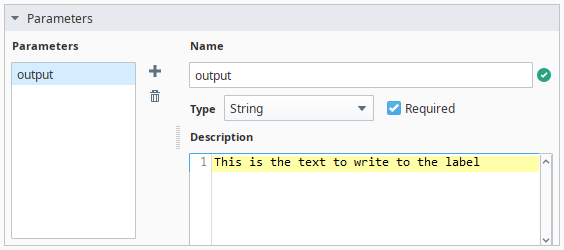
Add your parameters and give it a name and description. If necessary, change the data type. In this example, we will add one parameter, name it output, and give it a description of This is the text to write to the label.
-
Write your script to have your AI Chat component perform the action you want, with the parameters you want. Since we are writing to our Label component, we can use the Browse Properties
 icon and assign the Label's text property to our output parameter.

-
Once you finish creating your Agent Tool, click OK.
The AI Chat component wil now be able to write to the Label component.